

Last update:
DBIC as an MFA option during registration
Aug 27, 2026
Document-Based Identity Confirmation (DBIC) can be configured as an alternative Multi-Factor Authentication (MFA) option during registration for users who are unable to complete phone-based verification. Instead of receiving a one-time passcode (OTP) on a registered phone number, users can verify their identity using a government-issued identity document and real-time facial verification. This provides a secure alternative path to complete registration while maintaining the required level of identity assurance.
Overview
Phone-based MFA is commonly used during registration to confirm access to a valid phone number and establish a trusted authentication method for future sign-ins. However, some users may be unable to complete phone verification due to circumstances such as:
- Lack of cellular network coverage.
- Roaming or connectivity issues.
- Temporary or permanent loss of access to a phone number.
- Inability to receive SMS or voice-based OTPs.
In such scenarios, organizations still need a secure method to verify identity before allowing account creation to continue.
DBIC addresses this need by providing an alternative MFA option during registration. Instead of relying on phone verification, users can complete identity verification using a government-issued ID and biometric verification, enabling them to continue registration without access to a phone-based OTP.
What DBIC does as an MFA option
When phone-based MFA cannot be completed, the user is presented with an alternative verification option during registration.
The process typically includes:
- The user enters the required registration information.
- The user taps on “Use my government issued ID.
- On the Identity Verification Required screen, the user taps on Start identity verification The user provides a valid member identification number or other required identifier.
- The system validates the user's registration details against the records.
- If the user is successfully matched, the DBIC process is initiated.
- A verification link is sent through email, QR code, or another supported channel.
- Using a mobile device or tablet, the user:
- Captures a government-issued photo ID.
- Completes a selfie or facial verification process.
- The system performs document authentication, biometric matching, and liveness detection.
- A verification outcome is returned to the registration process.
- Upon successful verification, the user continues with account creation and credential setup.
DBIC serves as an alternative second-factor verification method when phone-based MFA is unavailable, helping users' complete registration without compromising security.
Key characteristics
- Provides an alternative MFA option when phone-based verification cannot be completed.
- Uses a government-issued photo ID such as a driver's license or passport.
- Supports biometric verification through selfie or facial matching.
- Uses document authentication, facial recognition, and liveness detection.
- Requires successful validation of user information against trusted records before DBIC can begin.
- Supports mobile and tablet-based document capture and facial verification.
- Can deliver verification links through email, QR code, or other supported methods.
- Allows users to continue registration without relying on SMS or voice OTP.
- Maintains a secure and auditable registration experience.
- Helps prevent registration abandonment for users without access to a functioning phone number.
- Returns a verification outcome that is used by the registration process to determine whether registration can proceed.
DBIC does not replace standard MFA methods for ongoing authentication. Instead, it acts as an alternative verification path during registration when phone-based MFA is unavailable.
Summary
Document-Based Identity Confirmation (DBIC) as an MFA option provides a secure alternative to phone-based verification during registration. By using a government-issued ID, biometric matching, and liveness detection, DBIC allows users who cannot receive phone-based OTPs to complete identity verification and continue registration. This approach helps reduce registration drop-offs, maintains strong identity assurance, and ensures that account creation can proceed securely even when traditional phone-based MFA is unavailable.
Working with DBIC as an MFA option during registration
Document‑Based Identity Confirmation (DBIC) process may be used as an MFA option when phone-based verification is not available during account registration.
Points to note:
If a user starts with the DBIC process, but leaves before completing the registration:
- The system will check whether a successful DBIC verification exists within the allowed validity period of 24 hours.
- If a successful verification exists within that period, the user can continue with the registration.
- If there’s any verification failure or link expiration due to time, the user will need to initiate a new DBIC verification process.
Steps
- On the portal, tap Create an Account.

- Enter the details in the First name, Last name, Email, and Date of birth MM-DD-YYYY boxes, and then tap Continue.
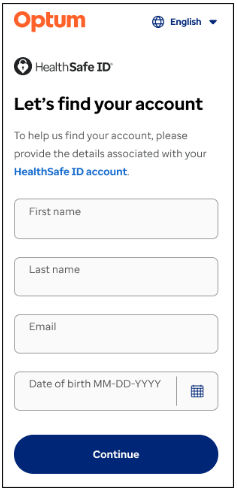 Note: A registration email with a 6-digit code is sent to the email address for verification. This email will be used as a username to log into the portal.
 - In the Enter the 6-digit code box, enter the code, and then tap Continue. Let’s protect your screen appears.
- As the user is unable to receive verification code because of limited cellular network coverage, roaming restrictions, connectivity issues, or temporary or permanent loss of access to a phone number, the user must provide their primary number to proceed with the verification. In the Phone number box, enter your phone number along with the country code, select the appropriate country code from the dropdown list. For example, +1 XXX-XXX-XXXX
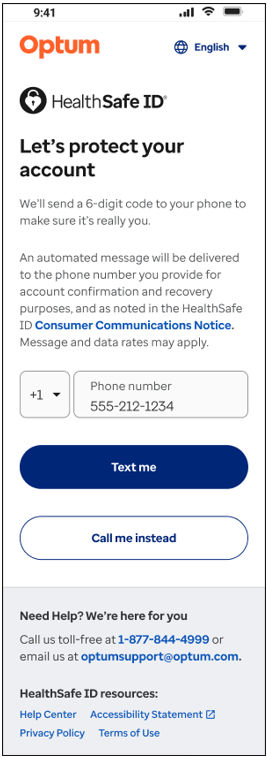
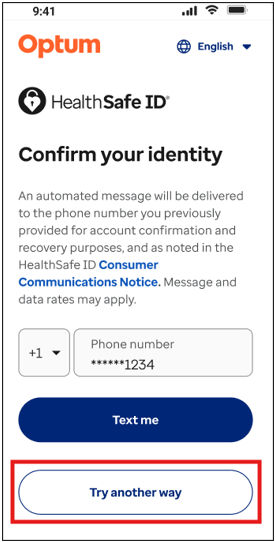
- Tap Text me or Call me instead.Note: As the user does not have phone network connectivity, the Try another way button appears after the verification code entry timer expires.
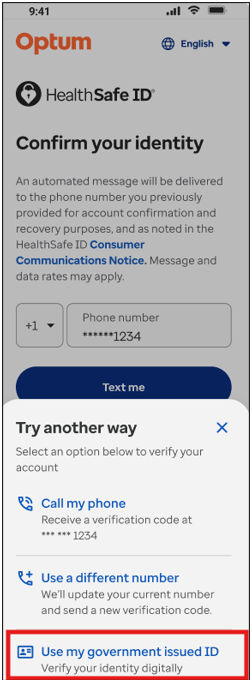
- Tap Try another way. The Try another way dialog box appears.
- Tap Use my government issued ID.
- On the Enter an identification number screen, in the Identification number box, enter the government issued ID number, and then tap Continue.
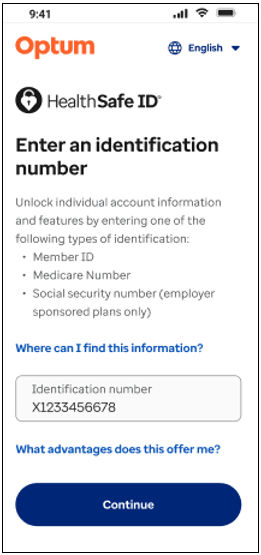 Note: If the user is not sure where to find the number, tap on Where can I find this information? link.
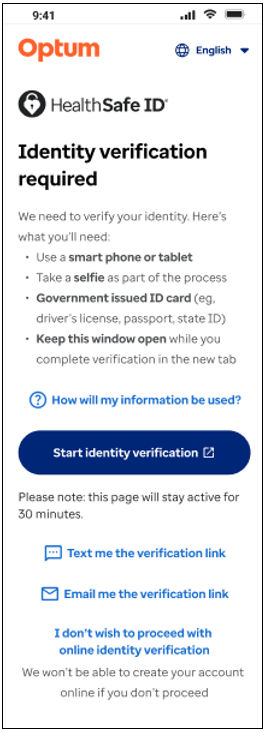
 - On the Identity verification required screen, tap Start identity verification. The Email me a verification link dialog box appears.
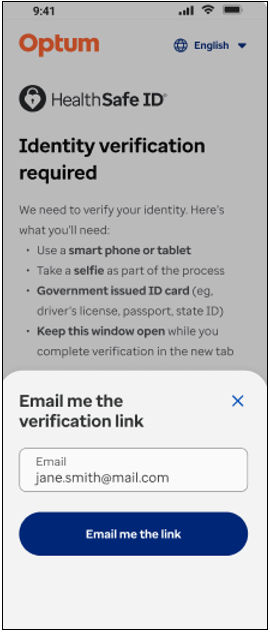
- In the Email me a verification link dialog box, verify the email address, and then tap Email me the link button. A link to begin the Document-based Identity Confirmation process is sent to the user’s email address. For more information, see DBIC during account recovery.
- After the user has completed following the DBIC verification steps, the user is directed to Account recovered screen, tap Continue. The Create a password screen appears.
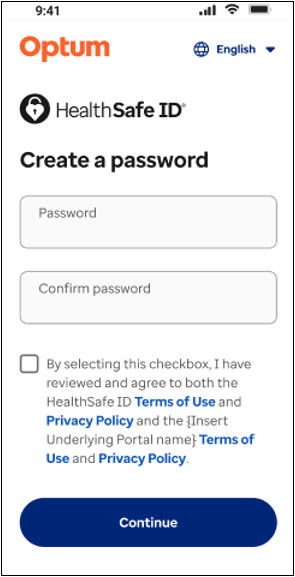
- Enter a new password in the Password and Confirm password box, and then tap Continue. The Sign in to your account screen appears.
- Enter the log in credentials, and tap Continue. The user is signed into the portal.
Previous:
DBIC during registration
Share additional feedback to help us improve.
0/255
|
Powered by Aikyam @2025 All rights reserved

+1 866 451 2735
 +1 866 451 2735

+1 855 819 5909