

Last update:
Column descriptions and behavior
Aug 3, 2026
- Date & time: The Date & time column includes a date filter that defines the time window for retrieving audit log entries.
- Users can select one of the predefined durations:
- 1 week
- 15 days
- 30 days
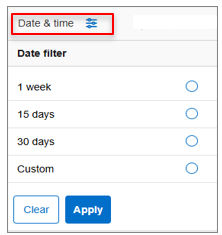
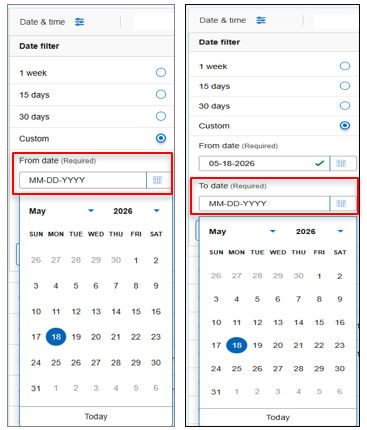
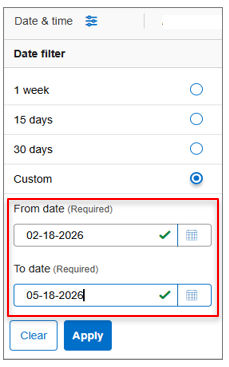
- Users can select Custom to specify a start and end date.
- When Custom is selected, a calendar control is displayed for date selection.
- Selecting Apply applies the selected date filter.
- Selecting Clear removes the applied filter.
- Users can select one of the predefined durations:
- Event: Event specifies the main type of activity recorded in the audit logs. The selected event determines which group of system‑generated actions is displayed, such as:
- Registration activities
- Authentication attempts
- Account recovery flows
- Account management operations
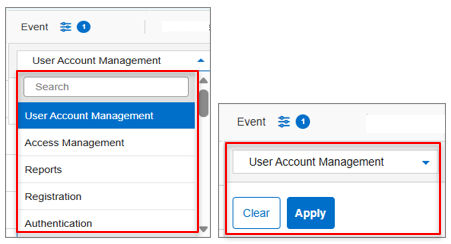 Selecting an event load only the logs associated with that workflow.
 - Event category: Event category provides a refined list of sub activities that belong to an event. These categories represent specific actions triggered by users, administrators, or system processes, for example:
- A profile read operation
- A webhook delivery attempt
- A phone‑number modification notification
- Authentication decision
Users can select multiple event categories to narrow the audit results to specific actions.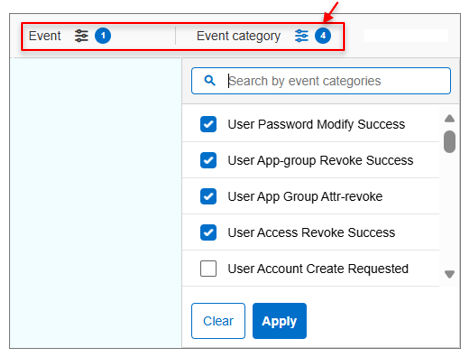 Dependency and validation behavior:
- Event category filtering is available only after an Event is selected.
- If a user attempts to access the Event category filter without selecting an Event, the system displays the following validation message: “Please select an event first to view event categories.”
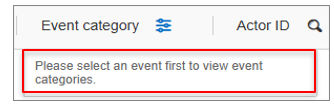 This validation ensures that event categories are displayed only when they are contextually applicable to the selected event.
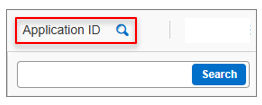
 - Application ID: Application ID identifies the application for which the audit logs are filtered.
- Each application has a unique identifier.
- Users can search for a single Application ID using the inline search control available in the Application ID column.
- Entering an Application ID limits results to actions originating from that specific application or portal.
- The filter is applied by entering the value and selecting Search.
Note: The earlier capability to select multiple Application IDs or add a custom Application ID is no longer available. The current UI supports filtering by one Application ID at a time. - Actor ID: Actor ID represents the unique identifier of the user, administrator, or automated identity that performed an action.
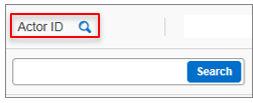
- The Actor ID column provides a search‑only control.
- Users can enter a single Actor ID value and select Search to filter the audit log results.
- The results are limited to events initiated by the specified identity.
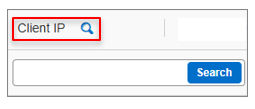
This search capability enables users to review all activities associated with a specific identity, including sign‑ins, profile updates, API calls, and administrative actions. - Client IP: Client IP represents the IP address from which an activity was initiated.
- The Client IP column provides a search‑only control.
- Users can enter a single IP address value and select Search to filter audit log results.
- The results display only events triggered from the specified IP address.
- The IP address corresponds to the client device or network gateway that interacted with the system during the event.
This search capability helps identify and investigate activities originating from a specific network source. - Details: The Details column provides a search‑only control.
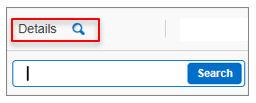
- Users can enter a text value and select Search to filter audit log entries.
- The search filters results based on matching content within the Details field.
- Users can also search using partial text:
- For example, to view OTP‑related events, users can enter OTP in the Details search box and select Search.
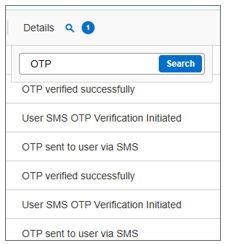
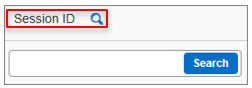
This capability is useful for locating specific outcomes, messages, or action descriptions displayed in the audit logs. - Session ID: Session ID identifies a group of actions performed during a single continuous user interaction.
- The Session ID column provides a search‑only control.
- Users can enter a single Session ID value and select Search.
- The results display only events associated with the specified session.
This search capability helps trace all activities that occurred within a specific session. - Country code: The Country code column is display‑only.
- It displays the country dialing code associated with the phone number.
- No inline filter or search control is available for this column.
- Phone number The Phone number column is display‑only.
- It displays the phone number associated with the activity record.
- No inline filter or search control is available for this column.
Previous:
Overview of column‑level filtering
Next:
Export logs
Share additional feedback to help us improve.
0/255
|
Powered by Aikyam @2025 All rights reserved

+1 866 451 2735
 +1 866 451 2735

+1 855 819 5909